Videos
 How it worksExplained step by step. For customers only.
What is Files?
Files is the heart of your workplace. You store documents, photos and folders there, share them with colleagues or external parties, and work with the same up-to-date version everywhere. It works like OneDrive or Dropbox, but your files are stored in Europe or on your own PC.
What can you do with it?
- SynchronisationWith the desktop app for Windows, macOS and Linux, your files are also available in File Explorer or Finder. Changes are automatically synced back and forth.
- Sharing with a linkShare a file or folder with anyone via a link, optionally with a password, expiry date and read-only permissions.
- Sharing with colleaguesGive individuals or groups access to a folder and set permissions per person for viewing, editing or further sharing.
- Version controlPrevious versions of a file are saved. Accidentally overwritten something? Restore an old version with one click.
- Recycle binDeleted files first go to the recycle bin, so you can still retrieve them.
- Mobile appsWith the apps for iOS and Android, you can access files on the go and automatically upload photos from your phone.
Getting started
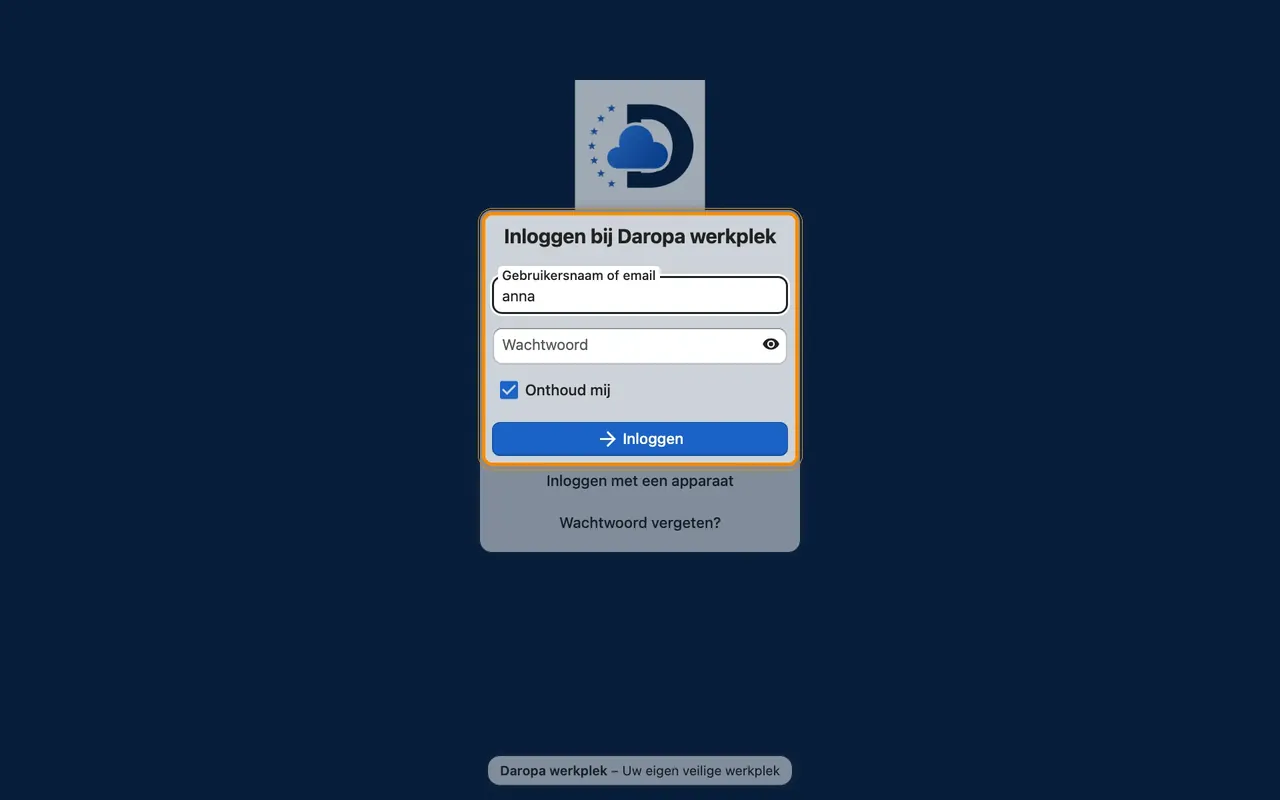
- Log inGo to the address of your workplace and log in with the details we provided.
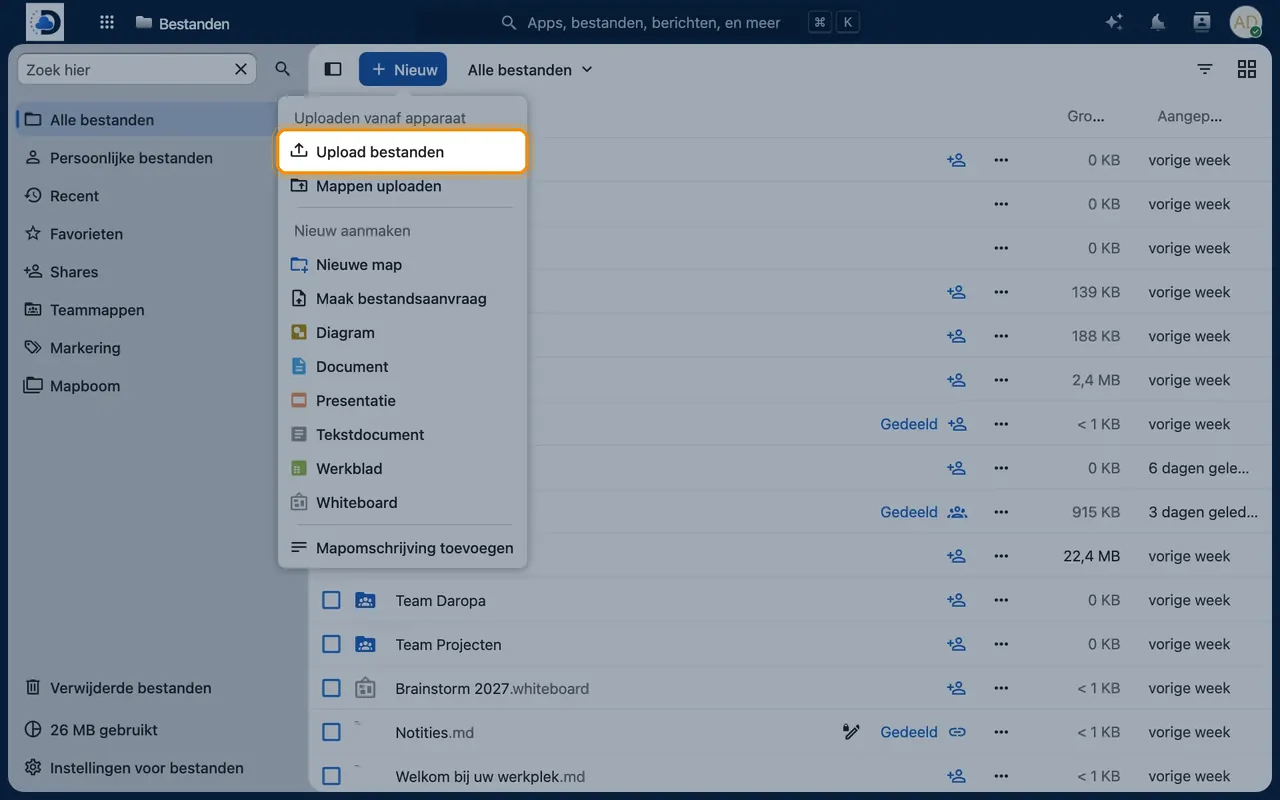
- Upload your first filesClick the plus icon in Files and select “Upload file”, or drag files directly into the browser window.
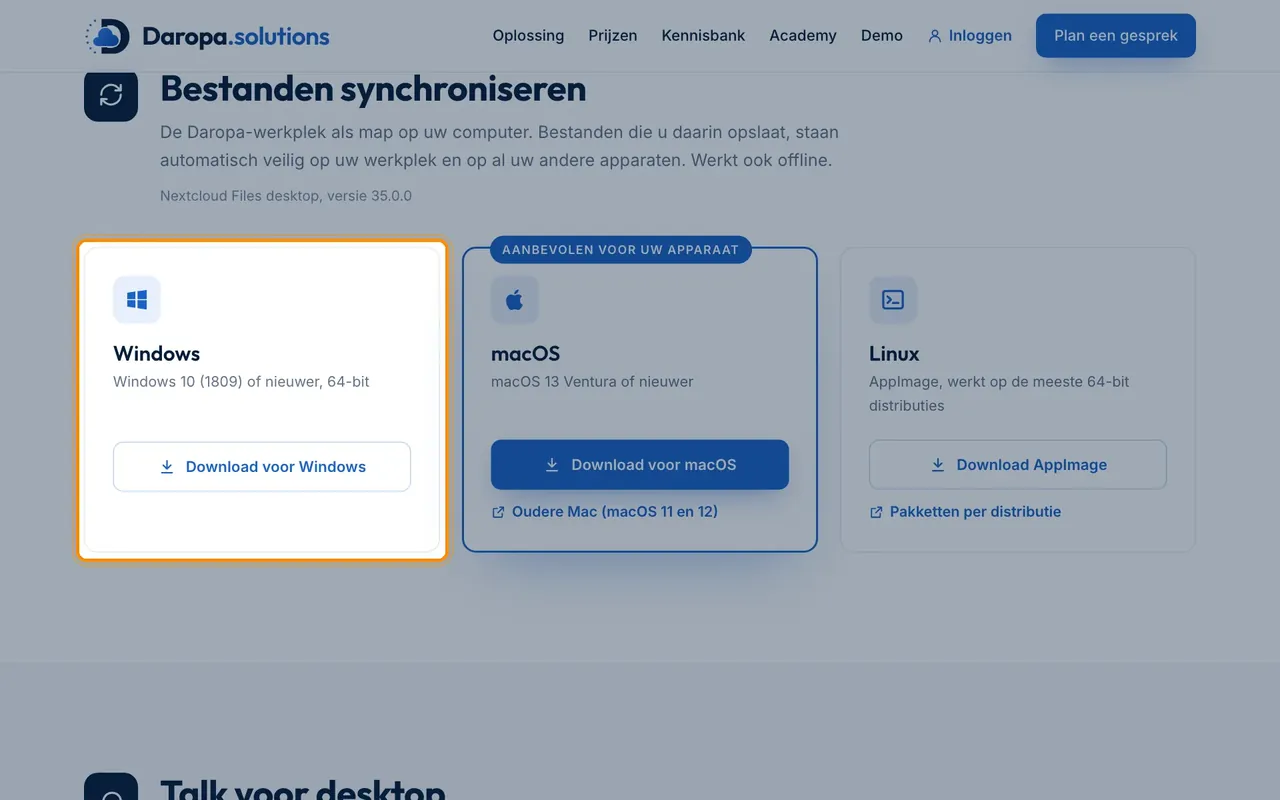
- Install the desktop appDownload the Nextcloud desktop client, enter the address of your workplace, and choose which folders you want on your computer.
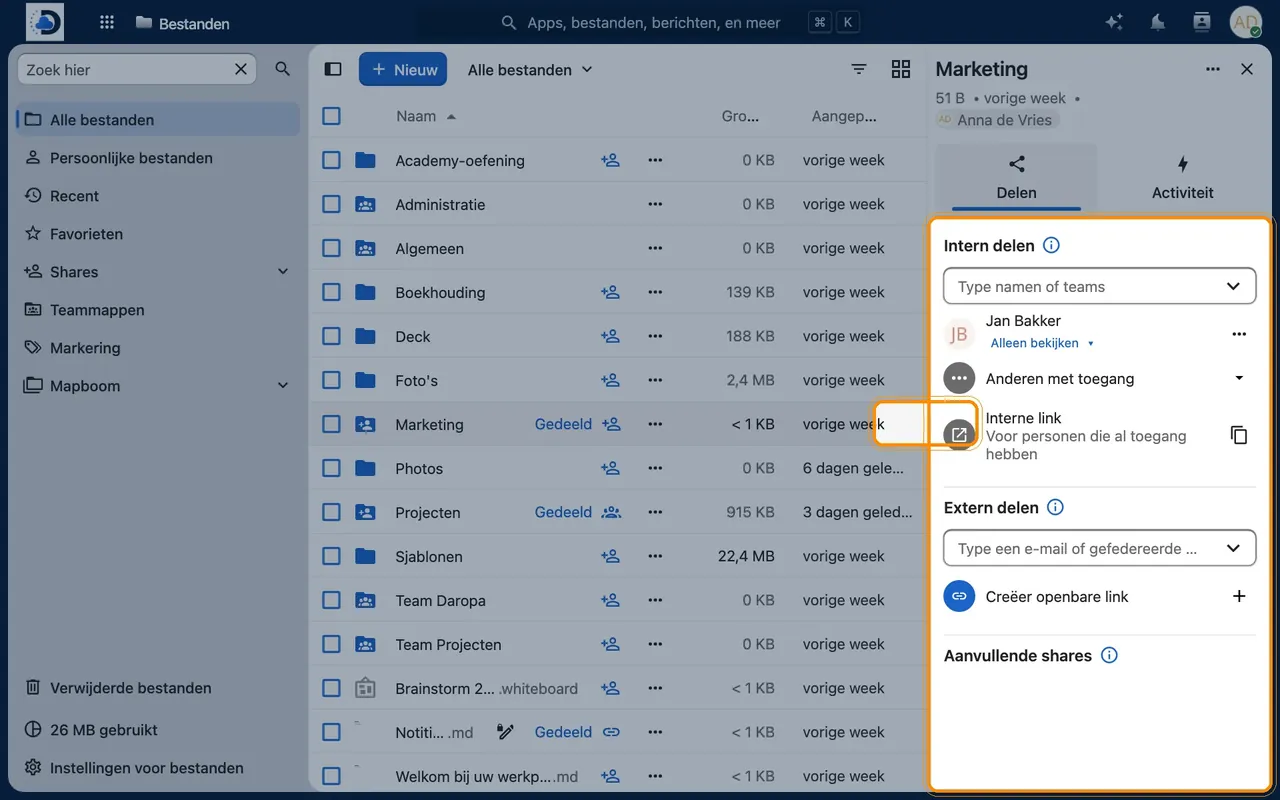
- Share a folderClick the share icon next to a folder, type a colleague’s name, or create a shareable link.
Tips
- Use “Virtual files” in the desktop app: you’ll see all your files, but they’re only downloaded when you open them. This saves disk space.
- Always set an expiry date for shareable links when sharing files with external parties.
- Mark frequently used folders with a star to find them under “Favourites” at the top.
Frequently asked questions
How much storage do I have?
This depends on your package and the agreements we’ve made with you. Extra storage can always be added.
Can I transfer files from OneDrive or Google Drive?
Yes. When you switch, we’ll transfer your files for you. You can also upload folders yourself via the desktop app.
Can external parties without an account submit files?
Yes. Create a shareable link with the option “File drop (upload only)”. The recipient can then upload files but won’t see the folder’s contents.