Videos
 How it worksExplained step by step. For customers only.
What is Dashboard?
The Dashboard is the first screen you see after logging in. It gives you an instant overview of what’s happening today: your next appointments, open tasks, new mail and chat messages, and the files you recently worked on.
What can you do with it?
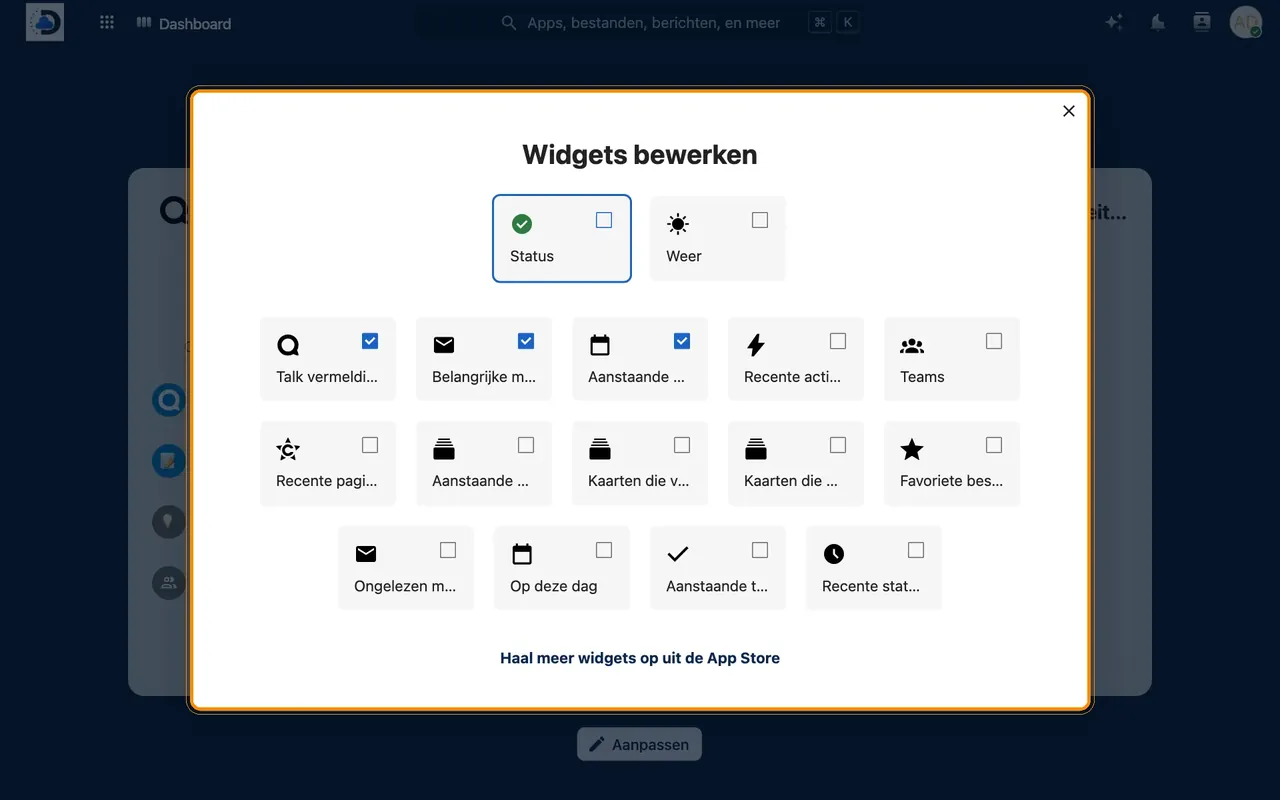
- Widgets of your choiceChoose which blocks you see, such as calendar, tasks, mail, Talk, Deck or recent files.
- Custom orderDrag the widgets into the order that works best for you.
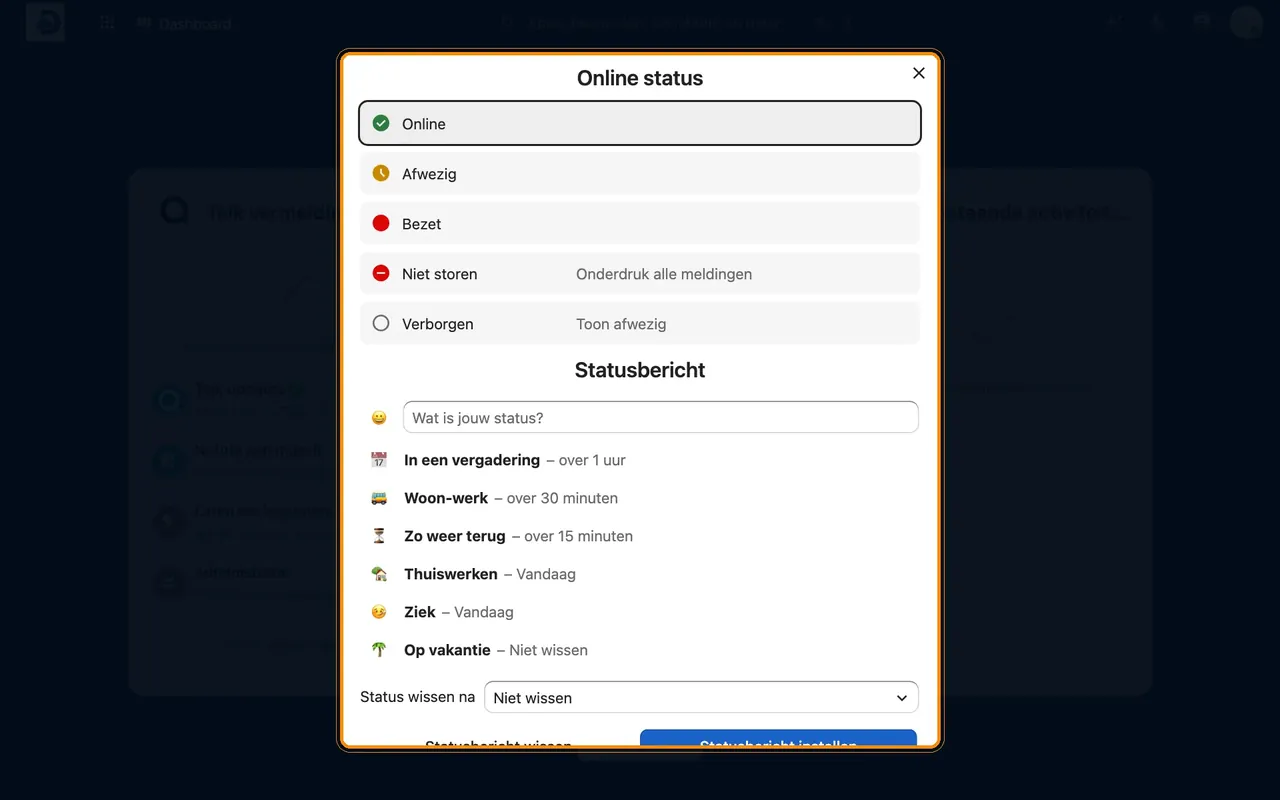
- Set your statusLet colleagues know if you’re available, in a meeting or away.
- Personal backgroundGive your workplace a personal touch with a background and colour of your choice.
Getting started
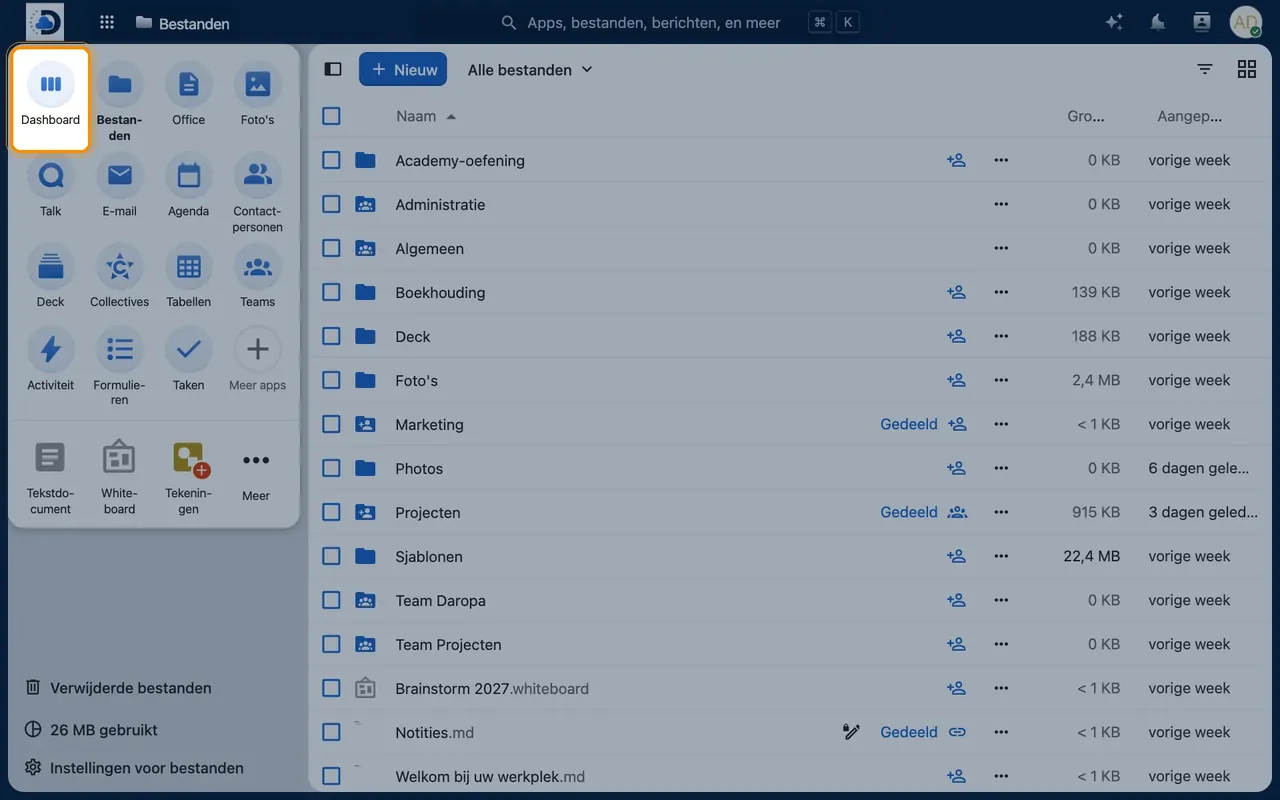
- Open the DashboardClick the logo in the top left or the Dashboard icon in the top bar.
- Customise the widgetsClick “Customise” at the bottom and tick the widgets you want to see.
- Set your statusClick your profile picture in the top right and choose a status, optionally with a custom message.
Tips
- Enable the “Recommended files” widget: it automatically shows the documents you recently worked on.
- With the “Do not disturb” status, you won’t receive notifications temporarily.
Frequently asked questions
Does everyone see the same Dashboard?
No. Every user sets up their own Dashboard.
Can I skip the Dashboard and go straight to Files?
Yes, we can set that up for your organisation if you prefer.