Videos
 How it worksExplained step by step. For customers only.
What is Backup?
Daropa automatically creates a daily backup of the entire Workplace. You can also use Data migration to export your own data yourself. This ensures you always have your own copy, which you can restore later.
What can you do with it?
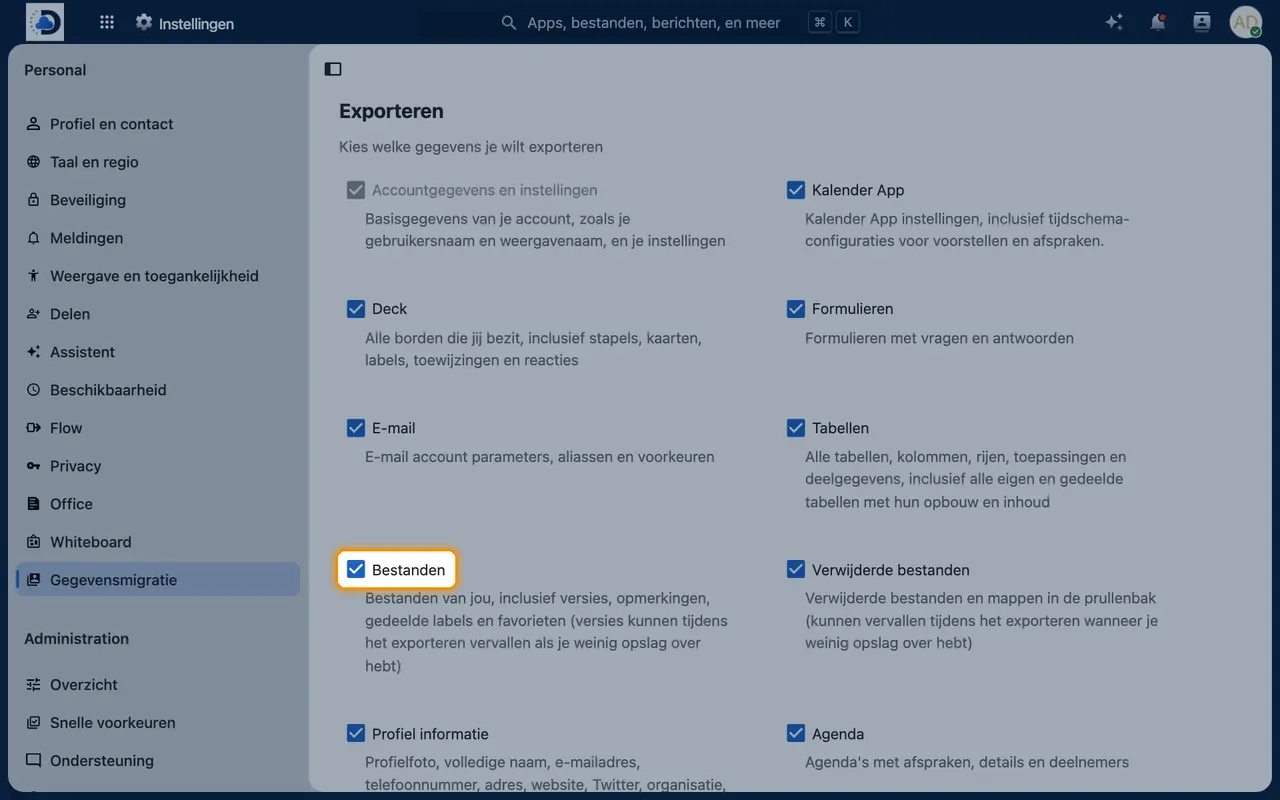
- Choose what to exportTick which data to include, such as files, calendar, contacts and Deck.
- One export fileThe Workplace creates a single file with all your data and notifies you when it is ready.
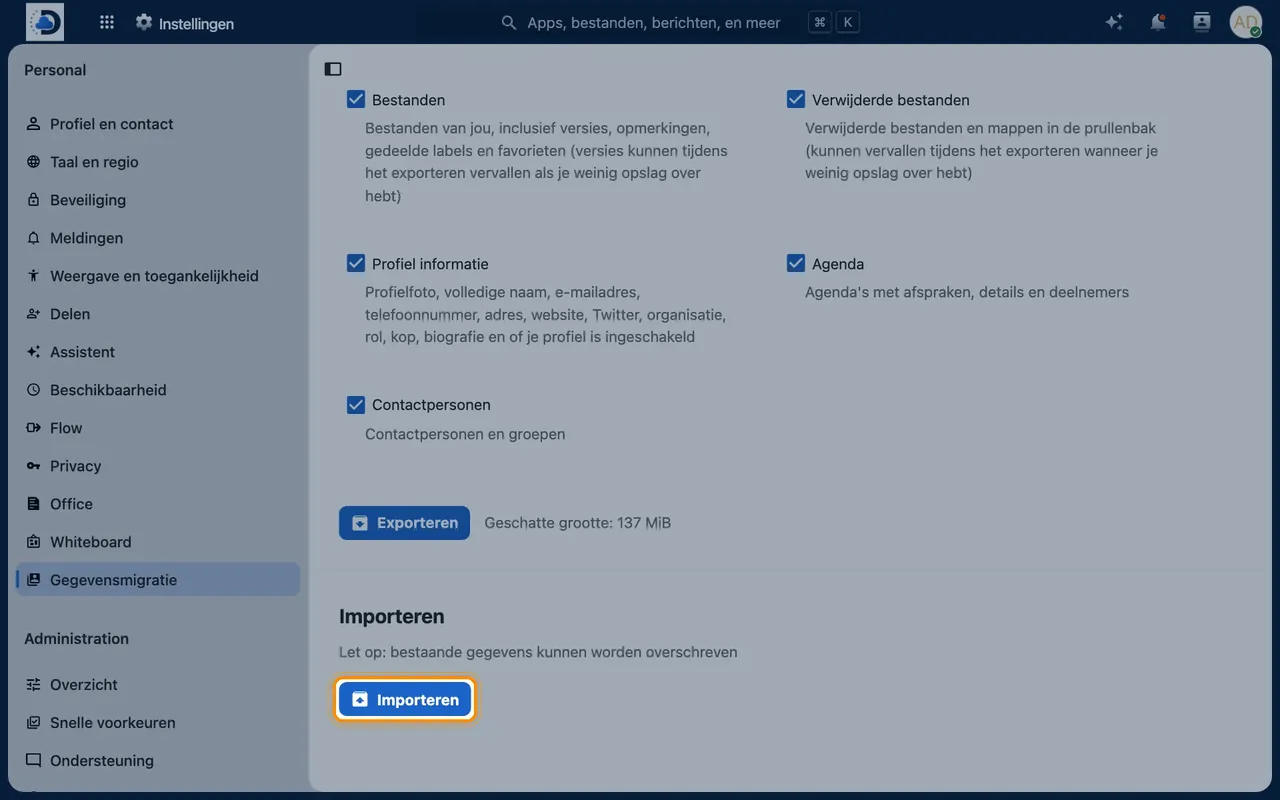
- RestoreUse Import to restore an export, for example after moving to a new server.
- Daily backupsDaropa also automatically creates a daily backup of the entire Workplace, so we can restore everything in the event of a disruption.
- Your own copyDownload the export file to keep a copy outside the Workplace, for example on an external drive.
Getting started
- Open Data migrationClick on your profile photo in the top right, select Personal settings and then Data migration.
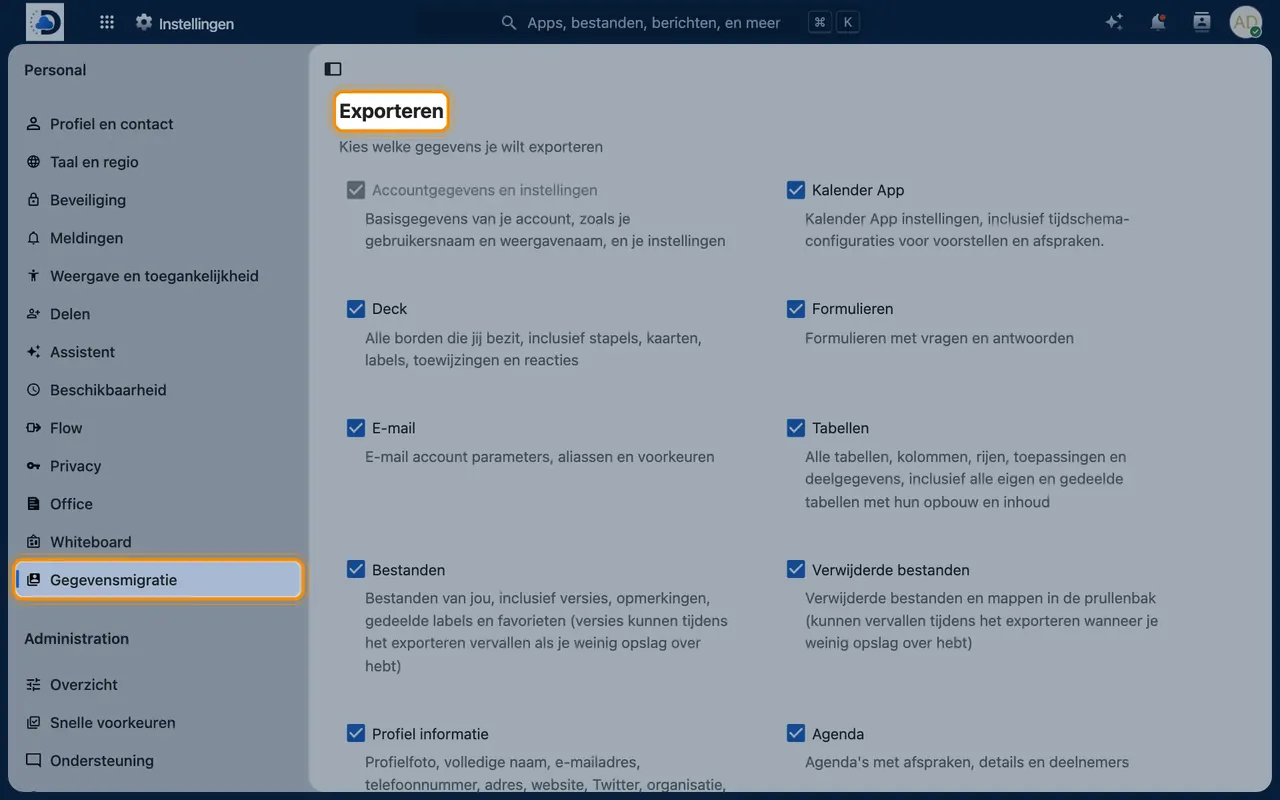
- Create an exportTick the data to include and click Export. You will receive a notification once the export file is available in Files.
- Restore an exportClick the button under Import and select the export file from Files. The data will be restored to your account.
Tips
- Create an export before making major changes, such as a move or cleaning up a large number of files.
- Store a downloaded export in a safe place: it contains all your data.
Frequently asked questions
What is the difference from Daropa’s daily backup?
Daropa’s daily backup covers the entire Workplace, allowing us to restore everything in the event of a disruption. With the Backup module, you can also create your own copy of your data, which you keep and restore whenever you want.
Where is the export file stored?
In the root folder of your Files, with the extension .nextcloud_export. Download it if you want to keep a copy outside the Workplace.